How to rotate a PDF and save it permanently
PDF tools · Published
Fix sideways or upside-down pages so they stay fixed when you save, share or print the file, not just in your viewer.
To fix a sideways page for good, you need a tool that saves the rotation into the PDF file itself. On a Mac, Preview does this. On an iPhone, rotating a page in the PDF viewer's page thumbnails does too. On Windows and Android, the built-in viewers often only turn the page on your screen, so use a tool that saves a rotated copy, such as Filecon's Rotate PDF.
Whatever you use, check the result afterward: open the saved file in a different app and make sure the pages are still the right way up.
Why the rotation doesn't stick
There are two different kinds of "rotate" in PDF apps:
- View rotation turns the page on your screen only. Most PDF viewers, including the ones built into web browsers, have a rotate button of this kind. Close the file, or send it to someone else, and it's sideways again.
- Saved rotation writes a setting into the page itself. Every PDF page has a rotation value (0, 90, 180 or 270 degrees) that tells any viewer which way up to show it. When that value changes and the file is saved, the fix travels with the file.
So the question to ask of any app is: does it save a new file (or update this one) after rotating? If there's no save step, it was almost certainly a view rotation.
With Filecon in any browser
Filecon rotates pages in your browser and saves a new PDF with the rotation written into each page. The file is processed on your device and isn't uploaded.
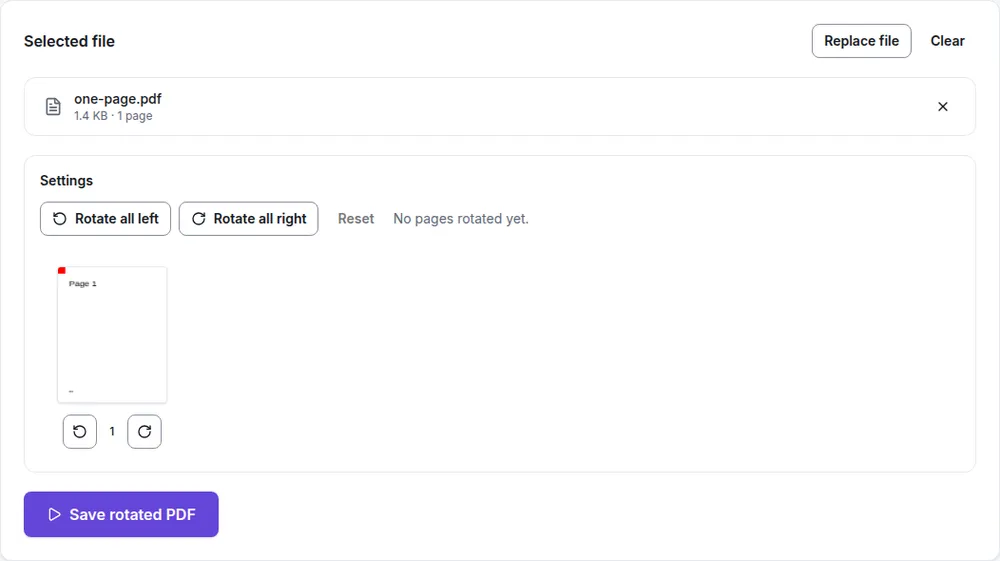
- Open Rotate PDF and choose your PDF.
- To turn one page, use the arrows under its thumbnail: left turns it counterclockwise, right turns it clockwise, 90 degrees per click.
- To turn every page, select Rotate all left or Rotate all right. Reset undoes your changes.
- Select Save rotated PDF and download the new file. It has "-rotated" added to its name, and your original isn't changed.
Good to know:
- Rotation is in 90-degree steps only. It won't straighten a page that was scanned slightly crooked.
- Rotating adds to any rotation a page already has, and nothing is re-compressed: text and images keep their quality.
- Files can be up to 25 MB and 300 pages. Password-protected PDFs can't be opened.
If you're also combining files, you can rotate each one first and then join them with Merge PDF.
On a Mac with Preview
- Open the PDF in Preview. If you want to keep the original, choose File › Duplicate and work on the copy.
- Choose View › Thumbnails and select the pages to rotate. Command-click to select several.
- Click the Rotate Left button in the toolbar. To rotate right instead, hold Option while you click it. You'll also find both commands in the Tools menu.
- Close the document or choose File › Save. Preview saves changes to PDFs automatically, and the rotation is stored in the file.
On Windows
Windows doesn't include a full PDF editor. Microsoft Edge, the default PDF viewer on many PCs, has a Rotate button in its PDF toolbar (Ctrl+]), and it turns every page on screen.
Reports differ on whether that rotation is kept when you save, and Edge's PDF features change between versions. If you want to try it:
- Open the PDF in Edge and select Rotate until the pages are the right way up.
- Use Save as in the PDF toolbar to save a copy under a new name.
- Open that copy in a different app, such as Chrome, and check it (see below).
If the pages snap back, the rotation was view-only. Use Filecon, or a desktop PDF editor you already have, that saves a new file. Edge's button also rotates every page at once, so it won't help when only one page is sideways.
On an iPhone
On recent iOS versions, PDFs open in Apple's Preview app; on older ones, they open in a viewer inside the Files app. Both let you rotate pages from the thumbnails, and the change is saved to the file.
- Open the PDF from the Files app.
- Show the page thumbnails. Depending on your version, tap the thumbnail or sidebar button, or swipe in from the left edge.
- Touch and hold the sideways page, then choose Rotate Right or Rotate Left.
- Close the document. Your change is saved.
The file is changed in place, so duplicate it first (touch and hold it in Files, then Duplicate) if you want to keep the original.
On an Android phone
Most Android phones don't come with a PDF editor, and the rotate option in many PDF viewers only changes the view. Some brands include a notes or document app that can edit PDFs, but options differ a lot. The dependable route is to open Rotate PDF in your phone's browser, rotate the pages and download the new file.
How to check that the rotation stuck
- Close the file in the app you used to rotate it.
- Open the saved copy in a different app, such as a web browser, the Files app on a phone, or Preview on a Mac.
- If you're sending it, email it to yourself and open the attachment on another device.
If the pages are right way up in a second app, the rotation is saved in the file. If they're sideways again, the first app only rotated the view.
Still not right?
- The page is upside down after rotating. You turned it the wrong way. Rotate it twice more in the same direction, or once in the other direction from the original.
- The page is slightly tilted. That's part of the scanned image, not the page rotation. Rotating in 90-degree steps can't fix it; rescanning usually can.
- The PDF won't open. Remove the password in the app you normally use, then try again.
Rotation only sticks when an app writes it into the file and saves. Preview on a Mac and the iPhone's PDF viewer do that. On Windows and Android, where the built-in viewers may only turn the screen, Filecon's Rotate PDF saves a corrected copy in your browser. Either way, open the result in a second app to confirm.