How to extract specific pages from a PDF
PDF tools · Published
Save only the pages you need from a longer PDF, on a computer or a phone, without printing or retyping anything.
The simplest way to pull a few pages out of a PDF on almost any device is the print dialog: choose Save as PDF (or Microsoft Print to PDF on Windows) as the printer, type the pages you want, and save. On a Mac, Preview lets you drag pages straight out of a document.
Printing to PDF rebuilds the pages, though, and can drop links, bookmarks and fillable form fields. If you want the pages copied exactly as they are, use a tool that copies pages instead, such as Preview on a Mac or Filecon's Extract PDF pages in any browser.
How page ranges work
Most tools, including print dialogs, understand the same shorthand:
- 7 means page 7 only.
- 2-4 means pages 2, 3 and 4.
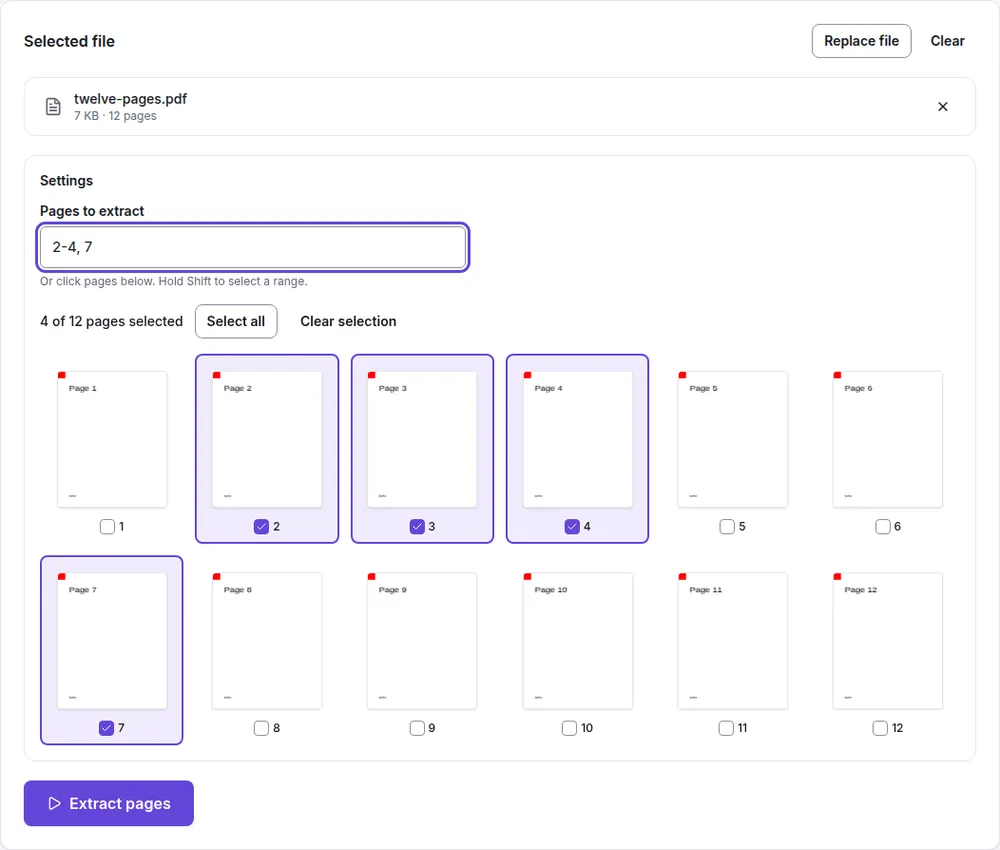
- 2-4, 7 means pages 2, 3, 4 and 7. Separate groups with commas.
Page numbers here mean the position in the file (the first page is 1), not the number printed at the bottom of the page. A report whose numbering starts after a cover and contents page can differ by two or three, so check the page count in your viewer.
With Filecon in any browser
Filecon copies the pages you choose into a new PDF without re-creating them, so text stays selectable and images keep their quality. It all happens in your browser: the PDF is processed on your device and isn't uploaded.
- Open Extract PDF pages and choose your PDF.
- Type the pages you want in Pages to extract, such as
2-4, 7. Or click the page thumbnails. Hold Shift and click to select a run of pages. - Check the count above the thumbnails (for example, "4 of 12 pages selected").
- Select Extract pages and download the new PDF. It's named after the pages it contains, and your original file isn't changed.
You can also type 10- to mean page 10 to the end. Files can be up to 25 MB and 300 pages. Password-protected PDFs can't be opened.
Extract or split?
Extract PDF pages keeps only the pages you pick, in one new file. Split PDF cuts a document into several files, for example pages 1-3, 4-8 and 9, or every 5 pages, and lets you download them one by one or together as a ZIP. Use extract when you need "just these pages", and split when you need the whole document in parts.
On a Mac with Preview
Drag pages out
- Open the PDF in Preview.
- Choose View › Thumbnails to show the sidebar.
- Select the pages you want. Command-click to pick pages that aren't next to each other.
- Drag the selected thumbnails onto the desktop or into a Finder window. Preview creates a new PDF containing just those pages.
Another route: select the thumbnails, copy them with Command+C, then choose File › New from Clipboard and save the new document.
On Windows
Windows has no built-in PDF editor, but you can print selected pages to a new PDF from Microsoft Edge or Google Chrome.
- Open the PDF in Edge or Chrome (drag it into a browser window).
- Press Ctrl+P.
- Set the printer to Microsoft Print to PDF, or Save as PDF if your browser lists it.
- Under Pages, choose the custom option and type your range, such as
2-4, 7. - Select Print or Save, then name the new file.
In Chrome on any computer
The same approach works in Chrome on a Mac, Windows PC or Chromebook: open the PDF, press Ctrl+P (Command+P on a Mac), set Destination to Save as PDF, choose Custom under Pages, type your range and select Save.
On an iPhone
The exact route depends on your iOS version. On recent versions, PDFs open in Apple's Preview app, which shows page thumbnails; on older ones, they open in a viewer inside the Files app.
Using the print screen
- Open the PDF, tap Share (or the More button), then Print.
- In the print options, set the page range to the pages you want.
- Save the result. Depending on your iOS version, the print screen may offer a save option directly; otherwise spread two fingers apart on the page preview to open it as a PDF, then tap Share and Save to Files.
By deleting pages from a copy
In the Files app, touch and hold the PDF and choose Duplicate. Open the copy, show the page thumbnails, then touch and hold each page you don't want and delete it. What's left is your extract.
On an Android phone
- Open the PDF in a viewer that can print, such as Google Drive or your phone's file app.
- Find Print, usually under Share or the More (three dots) menu.
- Set the printer at the top to Save as PDF.
- Tap the small down arrow to show more settings, and change the pages option from all pages to a range. Type the pages you want.
- Tap the PDF or download button and choose where to save it.
Menu names differ between phone brands and Android versions. If you can't find a page range option, use Filecon in your phone's browser instead.
If something goes wrong
- The wrong pages came out. Check that you used file positions, not the numbers printed on the pages.
- Links or form fields stopped working. That's a common side effect of printing to PDF. Try Preview's drag method or Filecon, which copy pages instead of rebuilding them. Fillable form fields may still not carry over, so keep the original if you need to fill it in.
- The PDF won't open. Password-protected files need to be unlocked in the app you normally use before any tool can take pages out.
- The extract is still too big to email. See our guide on reducing a PDF's size for email.
For a quick one-off, print to PDF with a page range from your browser or phone. When you want the pages copied as they are, with text selectable and images unchanged, drag them out in Preview on a Mac or use Filecon's Extract PDF pages in any browser.