Why can't I copy text from my PDF? (Scanned PDFs and OCR explained)
PDF tools · Published
How to tell a scanned PDF from a text PDF, why selecting text sometimes fails, and what OCR can and can't do about it.
The short answer
If you can't select or copy text in a PDF, the most likely reason is that the pages are scanned images: pictures of paper, not real text. You'll need OCR (optical character recognition) to turn them into text. Free options include Live Text on an iPhone or Mac, Google Drive's "Open with Google Docs", and OneNote on Windows.
The other two causes are a PDF whose author blocked copying with security settings, and text that copies but comes out as garbled symbols because of the way its fonts were stored. The fixes are different, so it's worth checking which one you have first.
How to tell which problem you have
- Try to select a single word. Use the text selection tool in your PDF viewer and drag over a word. If a whole-page rectangle gets selected, or nothing does, the page is probably an image.
- Search for a word you can see. Press Ctrl + F (Command + F on a Mac) and type a word from the page. No match usually means there's no real text on that page.
- Zoom in closely. Scanned text often looks slightly fuzzy, tilted or speckled at high zoom, while real text stays perfectly sharp.
- Check the security settings. In Adobe Acrobat Reader, right-click the document, choose Document Properties, and open the Security tab. The Document Restrictions Summary shows whether content copying is allowed.
- Paste what you copied. If the text selects and copies but pastes as random letters, boxes or symbols, it's a font encoding problem.
Cause 1: The PDF is scanned (image-only)
A scanner, a phone scanning app or a "print to PDF" of a photo creates pages that are just pictures. They look like text to you, but the file only contains pixels. Some scanning apps run OCR automatically and add an invisible text layer; many don't, and some PDFs are a mix of real text pages and scanned pages.
OCR reads the shapes of letters in the image and produces text. Free ways to do it:
Google Drive (any computer)
- Upload the PDF or image to Google Drive.
- Right-click it and choose Open with › Google Docs.
- Google creates a new document with the recognized text. Copy what you need, or keep editing it there.
Google's help page says the file should be 2 MB or smaller, text should be at least 10 pixels high, and pages should be right side up. Bold, italics and line breaks usually survive; lists, tables, columns and footnotes usually don't. This does upload your file to Google, so consider that for private documents.
iPhone and iPad: Live Text
Live Text works on photos and images (iPhone XS or later with iOS 15 or later). For a scanned PDF, first turn the pages into images, then:
- Open the image in the Photos app.
- Tap the Live Text button to highlight all the text, or touch and hold a word and drag the grab points.
- Tap Copy, or Select All first to take everything.
Mac: Preview or Photos
Open the page image in Preview, drag across the text, Control-click the selection and choose Copy Text. If dragging doesn't select anything, turn on Tools › Text Selection. Live Text also works in the Photos app on a Mac. Apple notes that Live Text isn't available in every region or language.
Windows: OneNote or Word
In the OneNote desktop app, insert the PDF as a file printout, then right-click one of the page images and choose Copy Text from All the Pages of the Printout (or Copy Text from Picture for a single image). Paste with Ctrl + V.
Microsoft Word can also open a PDF with File › Open and convert it into an editable document. Microsoft says this works best with files that are mostly text and that scanned documents may not convert cleanly, so expect cleanup.
Cause 2: Copying is blocked by the PDF's security settings
A PDF's author can add restrictions that stop copying, printing or editing, sometimes without a password to open the file. Adobe's help puts it plainly: you can copy content from a PDF unless the author has applied security settings that disallow copying.
The honest fix is to ask the sender for an unrestricted copy. If it's your own file, open it in the app that created it and save it again without restrictions. Tools that strip protection from other people's documents may break the author's terms, and Filecon doesn't offer that.
Cause 3: The text copies as gibberish
PDFs store text as references to characters in embedded fonts. Most PDF creators include a map from those characters back to normal letters. When that map is missing or wrong, which happens with some older software, unusual fonts and certain design tools, the page looks fine but the text underneath is meaningless when copied.
No text extractor can fix a broken map, because the correct letters aren't in the file. The practical workaround is to treat the page like a scan: turn it into an image and run OCR on it. Or ask the sender for the original document (Word, Google Docs and so on).
Where Filecon fits
Filecon has two tools that help here. Both run in your browser, so the PDF isn't uploaded.
- PDF to text extracts the text from PDFs that contain real text, page by page, into a .txt file you can download or copy. It's useful when selecting across many pages in a viewer is awkward. It does not do OCR. If a PDF has no text at all, it tells you it looks scanned instead of giving you an empty file, and if it finds very little text it warns you.
- PDF to JPG saves each page as an image, at Standard (150 DPI) or High (300 DPI). That's the missing step for Live Text on an iPhone or Mac, or for any OCR app that only accepts images. Choose High for small print.
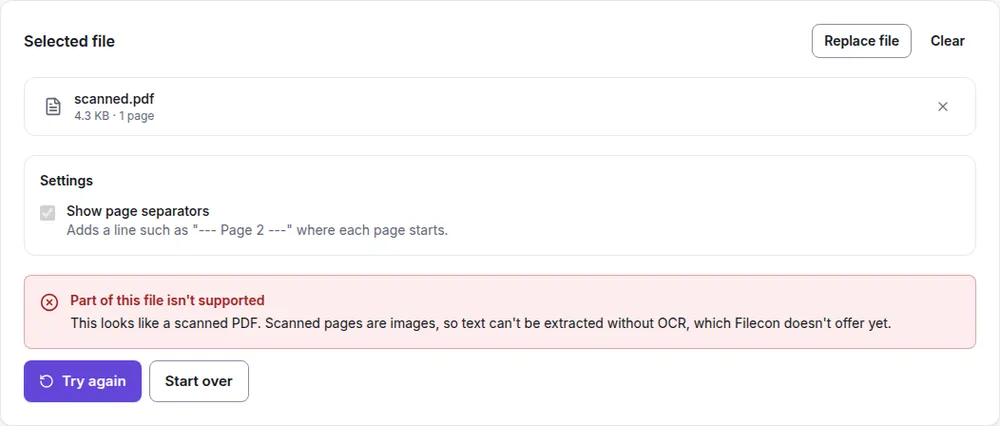
Filecon can't open password-protected or restricted PDFs, including ones that open without a password but limit copying, and it doesn't remove protection. Also note that extracted text follows reading order as best it can: columns and tables don't keep their layout.
Troubleshooting
Some pages copy and others don't
The PDF is a mix of real and scanned pages, common when documents are assembled from several sources. Extract the text pages as they are and run OCR only on the scanned ones.
The copied text has line breaks in the wrong places
PDFs store lines, not paragraphs, so copied text often breaks at the end of every printed line. Paste into a plain-text editor first and join the lines, or use a tool that rebuilds paragraphs.
OCR output is full of mistakes
Rescan at a higher resolution if you can, make sure pages are straight and right side up, or export the pages at 300 DPI before running OCR.
In short
Can't select anything? It's almost always a scan, and OCR is the answer. Copying blocked? Ask for an unrestricted copy. Gibberish? Treat it like a scan. For PDFs with real text, a text extractor gets you everything at once; for scans, turn the pages into images and use Live Text, Google Drive or OneNote.