JPG vs PNG vs WebP vs HEIC: which image format should you use?
Image tools · Published
A plain-language comparison of the four image formats you meet most, and which one to pick for photos, screenshots, websites and sharing.
The short answer
Use JPG for photos you want to share, print or upload anywhere. Use PNG for screenshots, logos and graphics with sharp edges, text or transparent backgrounds. Use WebP for images on your own website, where smaller files load faster. HEIC is what your iPhone saves by default: fine to keep on Apple devices, but convert it to JPG before sending it to Windows, a website or someone who can't open it.
If you only remember one rule: when in doubt, JPG for photos and PNG for everything else. Both open on practically every device and in every app.
Two ideas that explain everything: lossy and lossless
A lossy format makes files small by throwing away detail your eyes are unlikely to notice. At a high quality setting the difference is hard to see, but it's permanent, and saving the same image again and again in a lossy format slowly adds blur and blocky artifacts. JPG and HEIC photos are lossy. WebP can be either.
A lossless format keeps every pixel exactly. That's perfect for text and flat colors, but photos saved losslessly are usually much larger. PNG is always lossless.
One consequence surprises people: converting a JPG to PNG doesn't bring back detail. The PNG is an exact copy of the JPG as it is now, including any compression artifacts, and it's usually a bigger file.
JPG, PNG, WebP and HEIC compared
| Format | Compression | Transparency | Animation | Opens on |
|---|---|---|---|---|
| JPG (JPEG) | Lossy | No | No | Practically everything |
| PNG | Lossless | Yes | Rarely used (an animated variant exists) | Practically everything |
| WebP | Lossy or lossless | Yes | Yes | Current browsers and many apps; some older programs and upload forms refuse it |
| HEIC (HEIF) | Lossy | Not in normal iPhone photos | Not in normal iPhone photos | Apple devices and Safari; Windows needs extra extensions; most other browsers can't show it |
JPG: the safe choice for photos
JPG has been the standard photo format for decades, so every phone, computer, printer, email app and upload form accepts it. It handles the smooth gradients in photos well. Its weak spots are sharp edges and text, which can get fuzzy halos, and it has no transparency: a transparent area has to be filled with a solid color.
PNG: screenshots, logos and transparency
PNG keeps text and hard edges crisp and supports transparent backgrounds, which is why logos and icons are usually PNGs. Screenshots of documents, apps and websites also look best as PNG. For camera photos, a PNG is usually much larger than a good-quality JPG with no visible benefit.
WebP: smaller images for the web
Google created WebP for websites. It can be lossy like JPG or lossless like PNG, and it supports transparency and animation. Google's own WebP documentation states that lossless WebP images are 26% smaller than PNGs and lossy WebP images are 25–34% smaller than comparable JPGs at equivalent quality. Those are Google's averages from its own tests. Your images may differ.
All current major browsers display WebP. The catch is outside the browser: some older desktop programs, print services and upload forms still refuse it. That's why images saved from websites sometimes won't open where you need them.
HEIC: the iPhone's default
Since iOS 11, iPhones can save photos in the High Efficiency format (HEIF, with the .heic extension) to use less storage. Apple devices open these files natively, and Apple notes that when you share by AirDrop, Messages or email, a photo may be sent in a more compatible format such as JPEG automatically.
Elsewhere, support is patchy. According to caniuse.com, Safari 17 and later is the only major browser that displays HEIC; Chrome, Edge and Firefox don't. On Windows, Microsoft says you need both the HEIF Image Extensions and the HEVC Video Extensions from the Microsoft Store to view HEIC files. Our guide to opening HEIC photos on Windows covers that in detail.
Which format should you use?
- Photos to share, email or print: JPG. Everyone can open it.
- Screenshots, diagrams, text and logos: PNG. Edges and lettering stay sharp.
- A logo or cut-out that needs a transparent background: PNG, or WebP if it's only going on a website.
- Images on your own website: WebP is usually smaller for the same look. Keep your original JPG or PNG as a master copy.
- iPhone photos staying on Apple devices: HEIC is fine. Convert copies to JPG when you send them somewhere else.
- Anything you plan to edit repeatedly: work from a PNG (or your editing app's own format), then export a JPG at the end. That avoids piling up lossy compression.
Converting between formats with Filecon
Filecon's image converters run in your browser, so your photos aren't uploaded to a server. Each converter does one job:
- HEIC to JPG turns iPhone photos into JPGs. Only the main photo is converted, so Live Photo motion isn't kept. Chrome, Edge and Firefox use a decoder that runs on your device and can take a few seconds per photo.
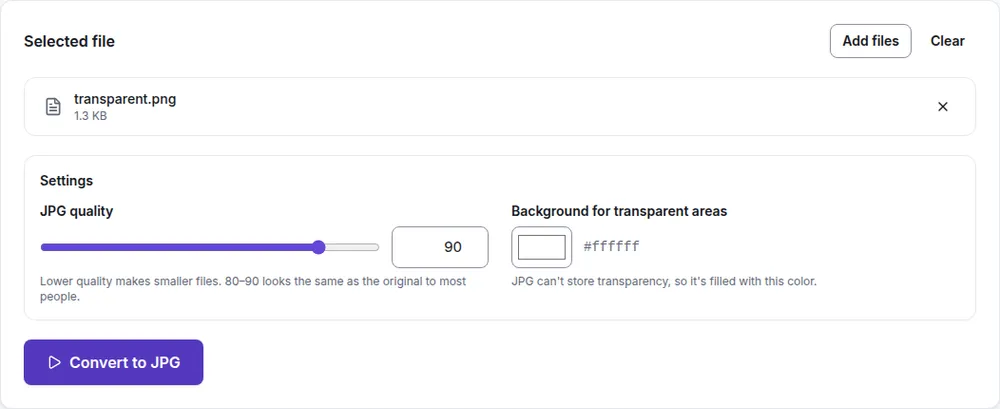
- PNG to JPG makes screenshots and graphics smaller, and lets you pick the color that fills transparent areas (white by default).
- JPG to PNG gives you a lossless copy for editing. It can't restore detail the JPG already lost, and the PNG is usually larger.
- WebP to JPG fixes images saved from websites that other apps won't open. Animated WebP files become a single JPG of the first frame.
- JPG to WebP prepares smaller images for a website, with a quality slider.
All five converters create a fresh image, so hidden details such as the camera model and GPS location aren't copied into the new file. That's good for privacy, but keep your original if you need the location or date information later.
Common questions and problems
Why is my converted file bigger than the original?
Moving from a more efficient format to a less efficient one often grows the file: HEIC to JPG, JPG to PNG, or WebP to JPG. The picture doesn't get better, only more compatible. If size matters, lower the JPG quality a little, or use the image compressor afterward.
Why did the transparent background turn white (or black)?
JPG has no transparency, so any tool converting to JPG must fill transparent areas with a color. If you need the transparency, keep the image as PNG or WebP.
Will converting lose quality?
Converting to PNG is lossless from that point on. Converting to JPG, lossy WebP or HEIC applies lossy compression once more. At high quality settings (around 80–90) most people can't see a difference, but avoid converting the same image back and forth.
In short
JPG for photos that need to open anywhere, PNG for screenshots and anything with text or transparency, WebP for your website, and HEIC only while photos stay on Apple devices. When a file won't open where you need it, converting a copy is quick, and your original stays untouched.