CSV opens in one column? Comma vs semicolon delimiters explained
Spreadsheet tools · Published
Why a CSV file sometimes opens with everything squeezed into column A, and how to open it correctly in Excel, Numbers and Google Sheets.
The short answer
When a CSV opens with everything in column A, the file uses a different separator from the one your spreadsheet app expects. Usually the file uses commas and your computer is set up for semicolons, or the other way around. The data is fine; only the way it's opened is wrong.
The dependable fix is to import the file instead of double-clicking it, and choose the delimiter yourself. In Excel that's Data › From Text/CSV; in Google Sheets it's File › Import. To just read the file, Filecon's CSV viewer detects the delimiter for you.
Why this happens
"CSV" stands for comma-separated values, but in practice the separator depends on where the file was made. In many European countries the comma is the decimal separator (12,50 instead of 12.50), so a comma can't also separate columns. Windows uses a list separator from your region settings, which is often a semicolon in those regions, and Excel uses it when it opens or saves a CSV by double-click.
| Delimiter | Example line | Common where |
|---|---|---|
| Comma | 1001,2026-03-02,12.50,DE | US, UK and many apps |
| Semicolon | 1001;2026-03-02;12,50;DE | Regions that use a decimal comma |
| Tab | 1001, 2026-03-02, 12.50 and DE separated by tab characters | Exports named .tsv or .txt |
So a semicolon file opened on a US computer lands in one column, and a comma file opened on a German or French computer does the same. Tab-separated files can do it too.
Fix it in Excel
Import with Data › From Text/CSV (recommended)
- Open a blank workbook and go to Data › From Text/CSV.
- Choose the file and select Import.
- In the preview window, open the Delimiter list and pick Comma, Semicolon or Tab until the columns look right.
- Select Load.
This works regardless of your region settings. If the file has IDs with leading zeros, see how to keep leading zeros in a CSV before you load it.
Split column A with Text to Columns
If the file is already open with everything in one column:
- Select column A.
- Go to Data › Text to Columns.
- Choose Delimited and select Next.
- Check the delimiter the file uses (for a semicolon, check Semicolon) and watch the preview.
- Select Finish.
Text to Columns can misread values that contain the delimiter inside quotes, so importing is safer for messy files.
The "sep=" first-line trick
Excel treats a first line that reads sep=, or sep=; as an instruction about the delimiter, and opens the file with it on a double-click. It's handy for a file you send to Excel users in another country. But it's an Excel habit, not part of the CSV format: other apps and scripts see sep=; as a first row of data, which can break imports. Remove it before the file goes anywhere else.
Change the Windows list separator
This changes the default for all apps on your PC, so do it only if you open files from the other convention every day. The steps below are for Windows 11; Windows 10 uses the same Region dialog.
- Open Settings › Time & language › Language & region and select Administrative language settings. Or press Windows+R, type
intl.cpland press Enter. - On the Formats tab, select Additional settings.
- On the Numbers tab, change List separator to a comma or semicolon.
- Select OK twice, then restart Excel.
If you only want Excel to behave differently, Microsoft describes an alternative: in File › Options › Advanced, clear Use system separators and set the decimal and thousands separators yourself.
On a Mac
macOS doesn't have a list separator field like Windows, and how Excel for Mac picks its default separator can vary with your region settings and version. The reliable route is again to import: in Excel for Mac use File › Import, choose the CSV file, and pick the delimiter in the Text Import Wizard. Menu names can differ slightly between versions.
In Numbers, open the CSV, then:
- Click the table.
- In the Format sidebar, select the Table tab and click Adjust Import Settings.
- On the Delimited tab, pick the delimiter, or type a custom one.
- Click Update Table.
Do this before you edit the table: Apple notes the import settings can't be changed after that.
Google Sheets
- In a new spreadsheet, go to File › Import and upload the file.
- Under Separator type, leave Detect automatically or choose the right one. For an unusual separator, choose Custom and type it.
- Select Import data.
View or convert it with Filecon
The CSV viewer reads the file in your browser without uploading it. It detects comma, semicolon, tab or pipe by checking which one gives a consistent number of columns, and shows its choice as "Automatic (Semicolon)". If it guesses wrong, pick the delimiter from the list and the table is rebuilt.
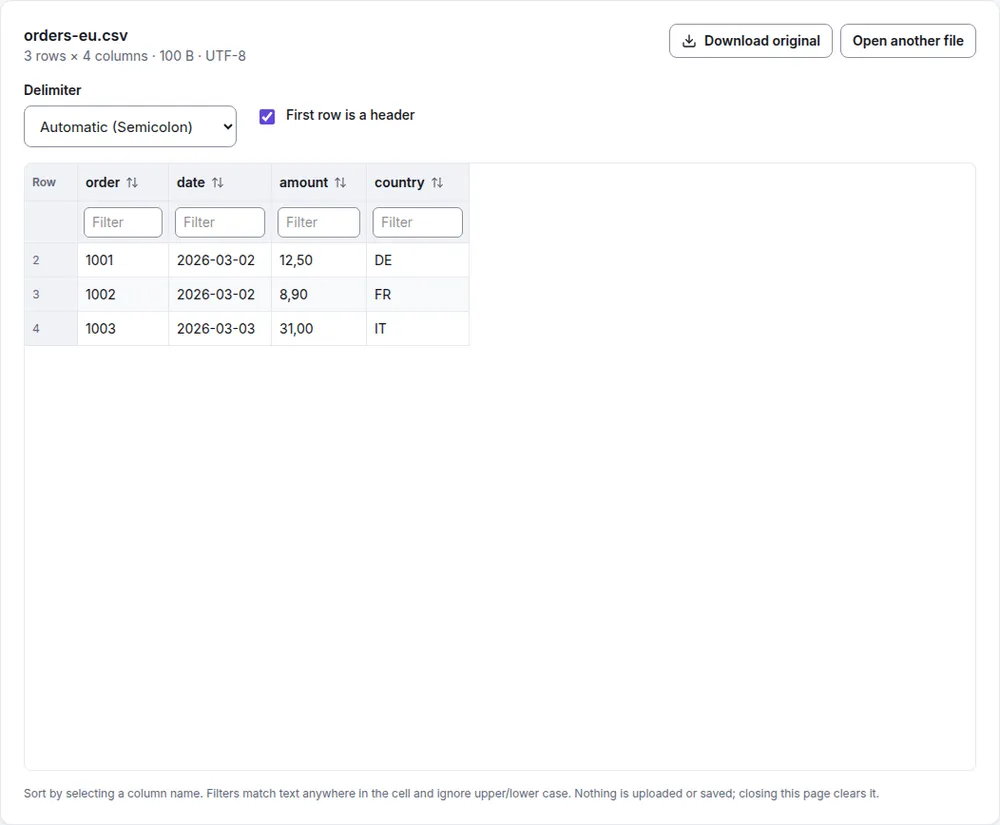
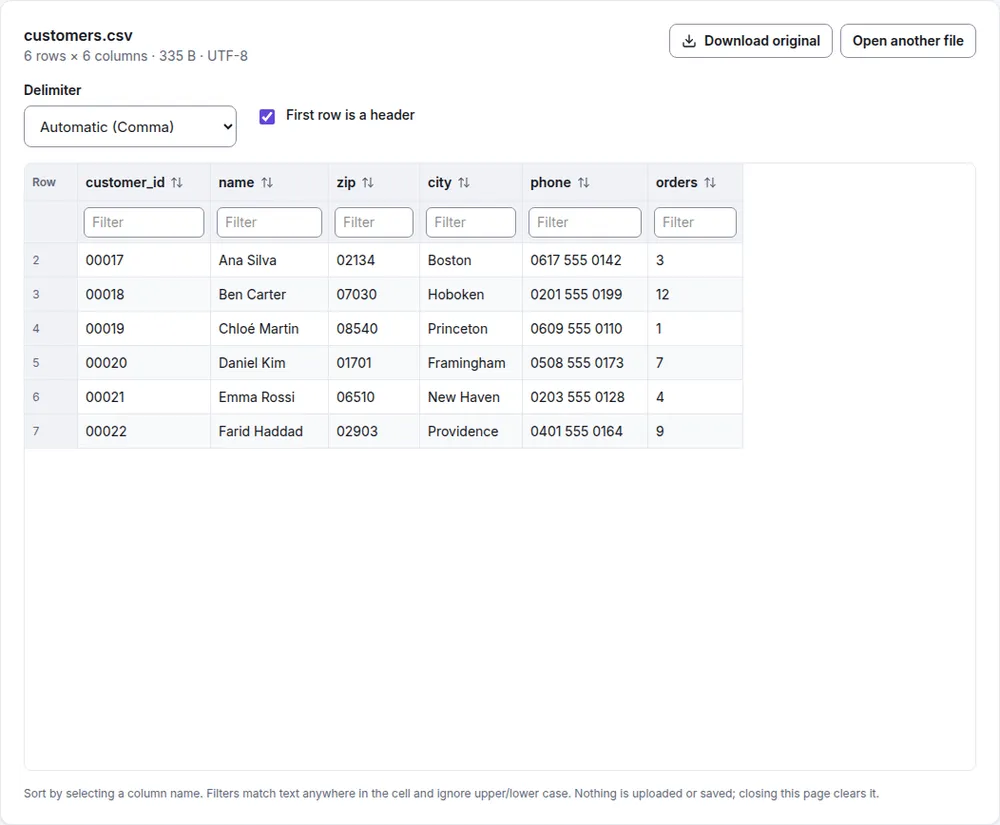
To turn the file into a real spreadsheet, CSV to Excel uses the same detection with a manual override and writes an .xlsx file. Excel opens it with the columns in place on any computer, whatever the region settings. Going the other way, Excel to CSV lets you choose comma, semicolon or tab, so you can match what the person receiving the file expects.
Still in one column?
- Every line is wrapped in quotes. Some exports put each whole line in quotes, so the delimiters are treated as text. Open the file in a text editor to check.
- The separator is something else. Pipes (|) and tabs are common in system exports. Choose them in the import dialog, or use Custom in Google Sheets.
- Accents look garbled. That's an encoding problem, not a delimiter problem. In Excel's From Text/CSV preview, try a different File Origin such as UTF-8.
Summary
A CSV in one column is a delimiter mismatch between the file and your region settings. Import the file and choose the delimiter, split the column with Text to Columns, or view it in a tool that detects the delimiter. Change the Windows list separator only if you deal with the other convention all the time.